

Insomnia
A menu bar app that keeps your Mac awake.
Download
All files
| File | Platform | Size |
|---|---|---|
| Insomnia-1.3.0-mac.zip | macOS | 342.1 KB |
| Insomnia-1.3.0.dmg | macOS | 656.2 KB |

Insomnia
A menu bar app that keeps your Mac awake.
Turn Keep Screen On and Stay Awake with Lid Closed on and off with one click.
English · 한국어
Install
- Download
Insomnia-x.y.z.dmgfrom the Releases page. - Open the dmg and drag Insomnia into the Applications folder.
- Open Insomnia from the Applications folder.
Works on macOS 13 or later, on both Apple silicon and Intel Macs.
[!IMPORTANT] The first time you open it, macOS may warn that Apple could not verify "Insomnia" is free of malware. Allow it once in either of these ways:
- Go to System Settings → Privacy & Security, scroll down, and click Open Anyway next to the message that Insomnia was blocked. When the confirmation dialog appears, click Open Anyway again and enter your Mac password.
- Or run this command in Terminal:
xattr -dr com.apple.quarantine /Applications/Insomnia.appAfter you allow it once, the warning won't come back. You'll need to allow it again after updating to a new version.
Usage
Insomnia doesn't appear in the Dock. Instead, a coffee cup icon appears in the menu bar at the top right. Click it to open the menu.
The menu follows your Mac's language (English, Korean, Japanese or Simplified Chinese). Other languages show English.
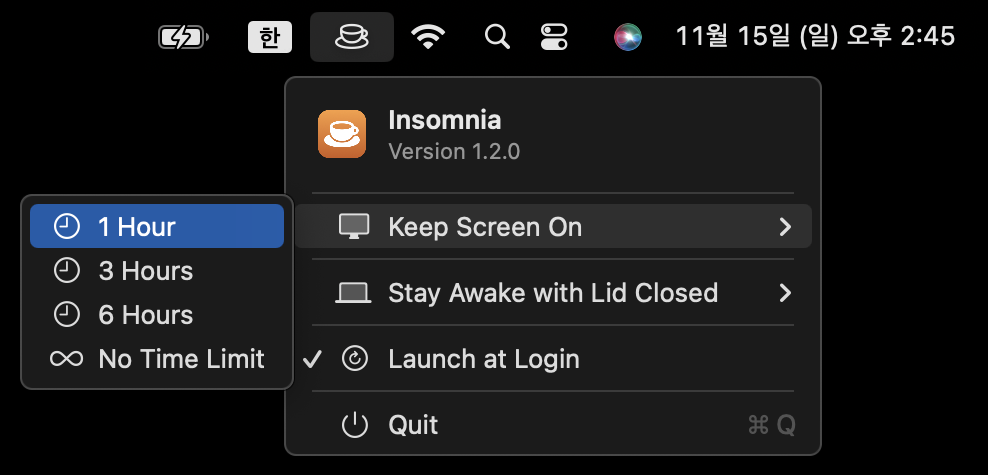
1. Keep Screen On
Your screen won't turn off or switch to the lock screen, even if you leave the Mac alone.
- Hover over Keep Screen On.
- Choose how long to keep it on (1 Hour / 3 Hours / 6 Hours / No Time Limit).
- Once it's on, the menu shows a checkmark and the time left. Click it again to turn it off.
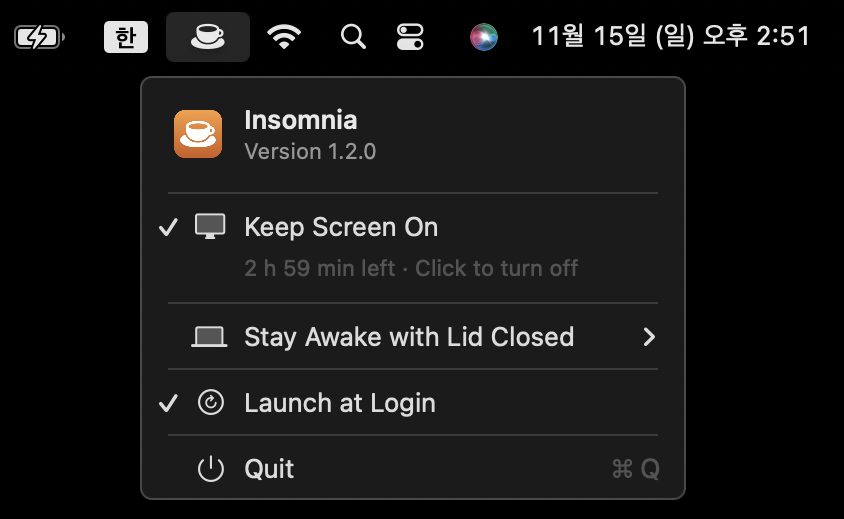
- It turns off automatically when the time is up. Quitting Insomnia or restarting also turns it off.
- Closing the lid still puts the Mac to sleep and locks it as usual.
2. Stay Awake with Lid Closed
Your Mac keeps working (builds, downloads and so on) even with the lid closed.
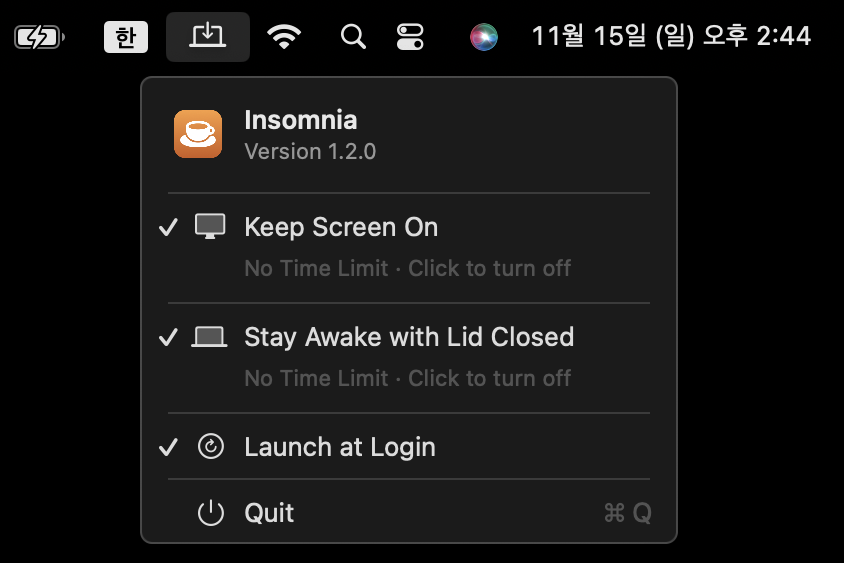
- Hover over Stay Awake with Lid Closed and choose how long.
- Enter your password when macOS asks for administrator access. It's needed every time you turn it on, but not when you turn it off.
- Now your work keeps running with the lid closed. When you open the lid, you'll see the lock screen.
While Insomnia is running, it turns off automatically when:
- the time you chose is up
- the battery drops to 20% or less while running on battery (it stays on while charging)
- you quit Insomnia with Quit in the menu
- you log out or restart after turning it on with a time limit
[!WARNING] If you choose No Time Limit, it stays on even after a restart. A Mac in a bag with the lid closed can get hot and drain its battery quickly, so turn it off when you're done.
3. Launch at Login
Check Launch at Login in the menu to have Insomnia appear in the menu bar every time you start your Mac. It only shows the menu bar icon. It doesn't turn on either feature by itself.
Menu bar icons

Hover over the icon to see each feature's status and time left.
Uninstall
- Turn off everything in the menu and click Quit.
- If you checked Launch at Login, uncheck it first.
- Move
/Applications/Insomnia.appto the Trash.
If you deleted the app while the lid setting was still on, turn it off in Terminal:
sudo pmset -a disablesleep 0If you ever turned on the lid setting, also delete the file that lets Insomnia turn it off without a password:
sudo rm /etc/sudoers.d/insomnia